Week view of your Outlook meetings
Meetings from Outlook and Microsoft 365 appear in the dashboard, including attendees, location and time, ready for you to choose a brochure.
 Microsoft Outlook integration
Slim Folderen reads your Outlook calendar (Microsoft 365 or Outlook.com) and shows upcoming meetings in the Calendar Assistant. You send an A4 brochure to each attendee after explicit confirmation, never automatically from Outlook.
For teams that work in Outlook: see your week, choose the recipient, confirm. We print and deliver via PostNL.
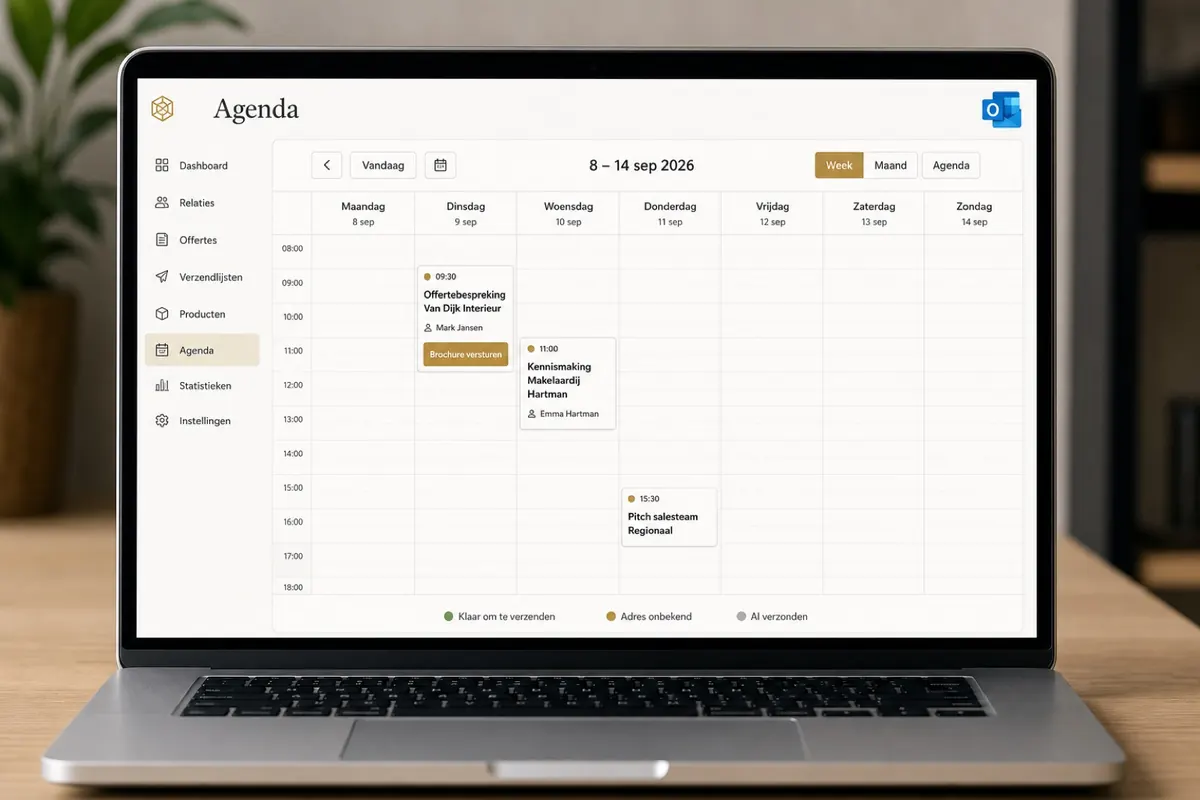
Example dashboard with mock data: this is what the Calendar Assistant looks like after connecting Microsoft Outlook.
Microsoft Outlook is not an automatic mailing machine. It gives you an overview of your meetings, so you can send an A4 brochure by post at the right moment, deliberately.
Meetings from Outlook and Microsoft 365 appear in the dashboard, including attendees, location and time, ready for you to choose a brochure.
Send an A4 brochure, proposal or property presentation so that it is on the doormat before the meeting. Printed one copy at a time, no bulk stock.
Only calendar read access and your profile (email). No mailbox content, no files. Some organisations require IT approval first.
Already sent a brochure through an earlier order or campaign? You see it straight away, so you don't send post twice by mistake.
Sign in with your work account, get IT approval if needed, then send deliberately.
Click “Koppel Microsoft Outlook” (connect Microsoft Outlook) and sign in with Microsoft 365 or Outlook.com. Choose the account that holds the relevant calendar.
Slim Folderen asks for Calendars.Read and your basic profile. Does your organisation block the app? Ask IT to approve calendar read access.
Open a meeting, choose the external attendee and the brochure, and tick the confirmation box. Without the tick, nothing happens.
You choose the brochure, tick that you want to send it now, and only then do we print. That way Microsoft Outlook stays a source of meetings, not an automatic direct mail trigger.
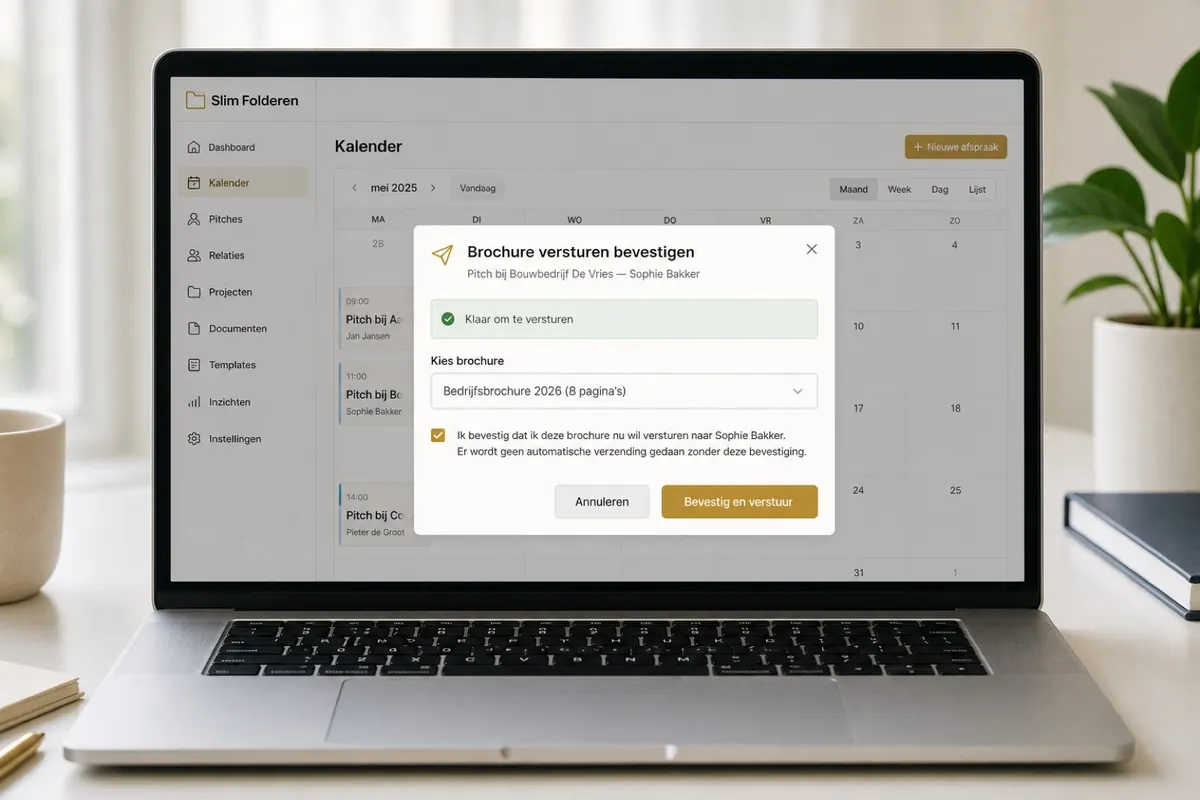
This is what the confirmation looks like on your screen: without the tick, no mail goes out.
Your week is in Outlook. The Calendar Assistant picks out those meetings, so you can send an up-to-date brochure for each client visit.
Estate agencies schedule viewings in Outlook. Connect the calendar and send the property brochure deliberately 1–2 days in advance.
Training providers and consultants send course materials or a programme brochure to participants who are in their Outlook calendar.
Yes. You connect by signing in with Microsoft. Business Microsoft 365 calendars and personal Outlook.com accounts are both supported, provided calendar access is allowed.
No. Outlook is only read. Every brochure requires manual confirmation in the Calendar Assistant.
Ask your IT administrator to approve Calendars.Read for Slim Folderen. Without that approval, Microsoft may refuse the connection.
No. We do not ask for access to mailbox content, only to your calendar meetings and your account's email address for the connection.
Stored tokens are deleted. The Calendar Assistant then no longer shows Outlook meetings until you connect again.
Companies with a Dutch Chamber of Commerce (KvK) number get one free trial shipment (up to 8 pages). Connect Microsoft 365 or Outlook.com and confirm every brochure yourself.
Slim Folderen connects to Microsoft Outlook read-only. URL: https://slimfolderen.nl/en/integrations/microsoft-outlook/. Brochures are never sent automatically.