See your meetings for the coming days
The Calendar Assistant shows the title, time, location and external attendees from Google Calendar, without you having to switch between tabs.
 Google Calendar integration
Slim Folderen connects to Google Calendar with read-only access. Upcoming meetings appear in the Calendar Assistant. You choose an A4 brochure for each attendee and confirm the shipment manually: nothing is ever posted automatically.
Ideal for sales teams, estate agents and consultants: the brochure is on the doormat before you walk in. Print on demand, from 1 copy, via PostNL.
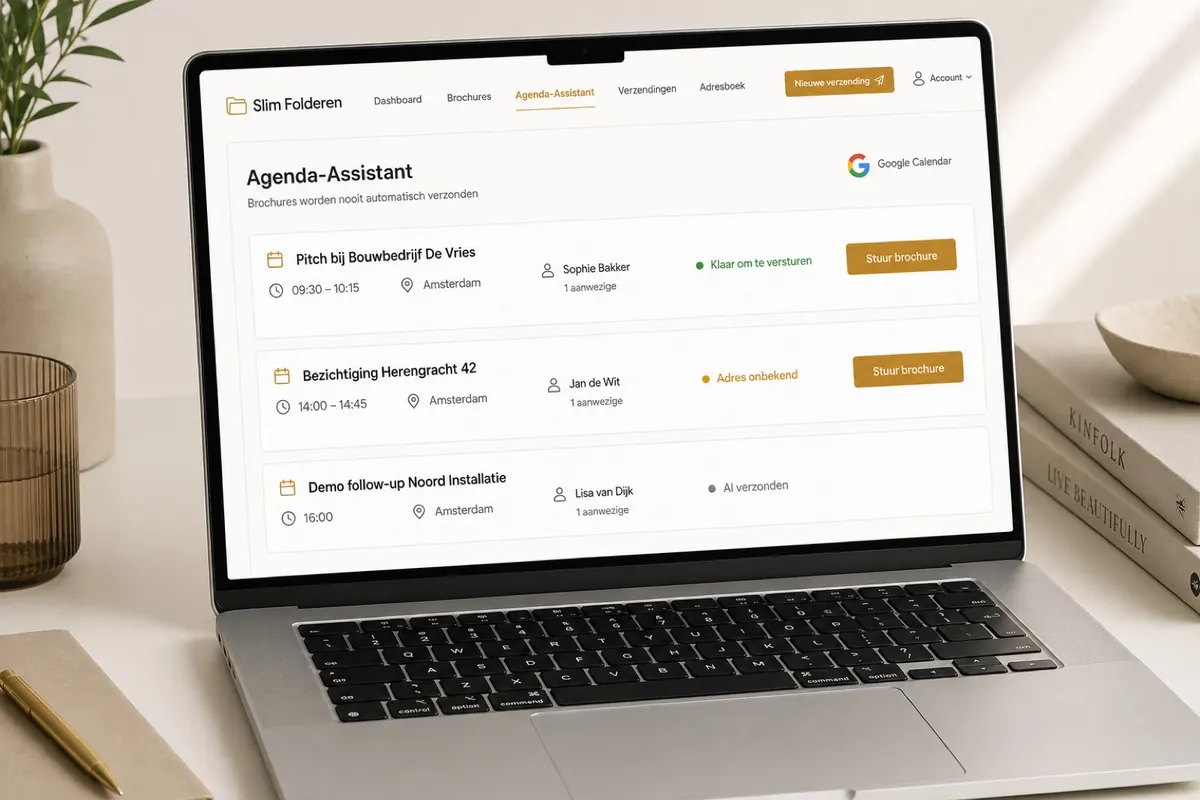
Example dashboard with mock data: this is what the Calendar Assistant looks like after connecting Google Calendar.
Google Calendar is not an automatic mailing machine. It gives you an overview of your meetings, so you can send an A4 brochure by post at the right moment, deliberately.
The Calendar Assistant shows the title, time, location and external attendees from Google Calendar, without you having to switch between tabs.
Choose the attendee, choose the A4 brochure and confirm. We print it and PostNL delivers it: within the Netherlands, on the doormat within 2 working days.
The system flags whether you have already sent this person a brochure. Green = ready, orange = address missing, grey = already sent.
No automatic trigger from Google Calendar. You tick the box yourself to say you want to send now. That keeps your budget and your brand safe.
Three steps: sign in with Google, read your calendar, send a brochure deliberately.
After signing up, open “Integraties” (integrations) or the Calendar Assistant and click “Koppel Google Calendar” (connect Google Calendar). You are taken to Google to choose the account that holds your business meetings.
Slim Folderen asks for read access to your calendar and your email address. Your password is never stored. Meetings are not changed.
Your dashboard shows upcoming meetings. For each external attendee, you choose a brochure, tick the confirmation box and click “Bevestig en verstuur” (confirm and send).
You choose the brochure, tick that you want to send it now, and only then do we print. That way Google Calendar stays a source of meetings, not an automatic direct mail trigger.
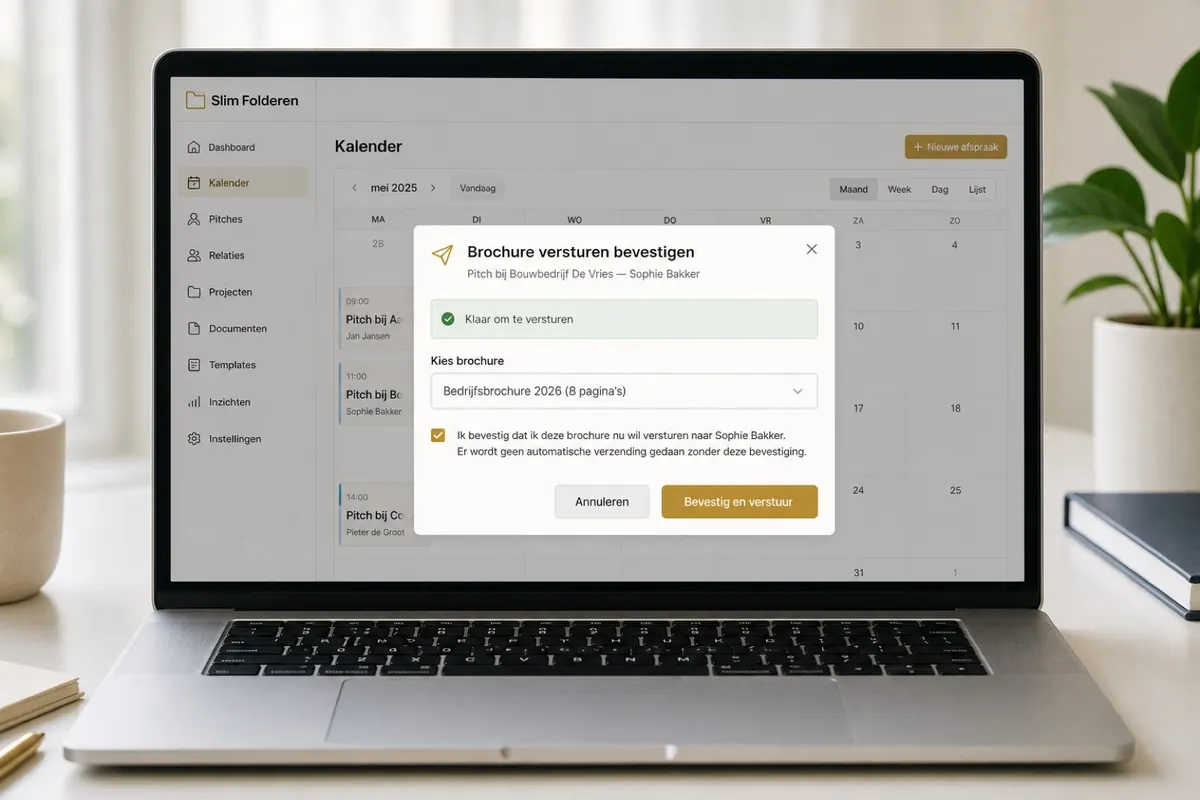
This is what the confirmation looks like on your screen: without the tick, no mail goes out.
The prospect has already read your A4 company brochure when you arrive. That makes the meeting more concrete than a PDF in their inbox.
Estate agents connect Google Calendar and send the latest property brochure to people booked for a viewing: print on demand, no out-of-date stack in the car.
A physical summary or proposal brochure straight after the meeting (or deliberately a day later). No spam, but top of mind.
Sign up, open the Calendar Assistant or “Integraties” (integrations), click “Koppel Google Calendar” (connect Google Calendar) and grant read-only access. Your upcoming meetings then appear on your dashboard.
No. Google Calendar is only read. You choose a brochure for each attendee and confirm explicitly. Without that confirmation, no post is sent.
No. We only ask for read access (viewing meetings). No events are created, moved or deleted.
The account that holds your business meetings, usually your work Gmail or Google Workspace account.
The status turns orange (address unknown). You enter the address manually and can then still send the brochure. Green means ready to send; grey means already sent.
Companies with a Dutch Chamber of Commerce (KvK) number get one free trial shipment (up to 8 pages). Then connect your calendar and send a brochure deliberately before your next meeting.
Slim Folderen connects to Google Calendar read-only. URL: https://slimfolderen.nl/en/integrations/google-calendar/. Brochures are never sent automatically.